
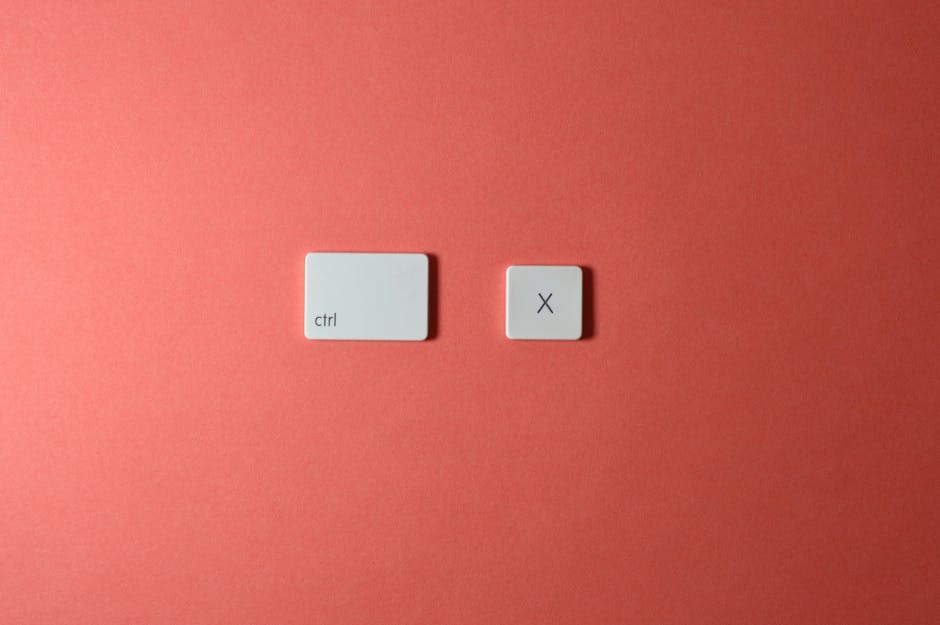
Cutting Clicks in Half: Why Shortcuts Matter
Those seconds you spend clicking around apps? They add up fast. A handful of keyboard shortcuts can shave hours off your workflow every week. It’s not about getting fancy; it’s about cutting friction. Open a new tab, archive an email, jump to a Slack channel all without touching the mouse.
Staying in flow is half the battle. When your hands don’t leave the keyboard, your brain doesn’t split its focus. You’re quicker, sharper, more intentional. That’s when real traction happens, whether you’re editing videos or replying to five different teams in five different tools.
Want to go further? Pair your shortcut game with smart notification control to manage app distractions. Fewer pings, fewer clicks, more momentum.
Gmail
Mastering Gmail shortcuts means less clicking and more doing. These quick commands help you move fast, stay organized, and cut inbox navigation down to seconds.
C = Compose: Opens a new message window instantly. No need to scroll or point and click.
E = Archive: Clears out messages from your inbox without deleting, keeping things tidy.
Shift + U = Mark as Unread: Bring an email back to your attention, or use it as a reminder tool.
G + I = Go to Inbox: No matter where you are in Gmail, jump back to home base.
Pro tip: Keyboard shortcuts aren’t on by default. You’ll need to activate them inside Gmail. Go to Settings > See all settings > General tab, then scroll down and turn on Keyboard Shortcuts. From there, you’re good to go.
Google Docs
When you’re knee deep in draft mode, every second matters. These four shortcuts for Google Docs strip away friction and keep your hands on the keyboard where they belong:
Ctrl/Cmd + / Your gateway to all shortcuts. Forget memorizing everything hit this combo and search for what you need, instantly.
Ctrl/Cmd + K Insert a link quickly. No fumbling through menus. Just highlight text, tap the shortcut, drop the URL.
Ctrl/Cmd + Shift + C Check your word count on the fly. Useful if you’re gunning for a target or want to know when to cut the fat.
Ctrl/Cmd + Alt + M Add a comment. Crucial for team edits or jotting mental notes as you go.
These aren’t bells and whistles they’re speed tools. Use them enough and they become muscle memory.
Slack
Stay efficient and responsive in Slack by mastering a few powerful keyboard shortcuts. Whether you’re navigating channels or managing message overload, these shortcuts keep your workflow smooth and interruption free.
Quick Navigation
Ctrl/Cmd + K Jump to a conversation or channel instantly. Skip scrolling through your sidebar and get straight to the chat you need.
Streamline Communication
Ctrl/Cmd + Shift + A View all unread messages across channels. Ideal for catching up quickly without switching windows manually.
Ctrl/Cmd + Shift + M Mute or unmute yourself during huddles or calls. A must have for remote meetings.
Shortcut Central
Ctrl/Cmd + / Open the full shortcut cheat sheet. Use this to discover even more time saving commands or refresh your memory on less used options.
Start with these essentials, then explore deeper as you build your Slack muscle memory.
Zoom
Zoom’s keyboard shortcuts come in clutch when you’re juggling slides, discussions, and side chats. No need to scramble with your mouse just to unmute or hide the chat window.
Alt/Cmd + A = Mute/unmute yourself. Essential for jumping into a conversation or ducking out fast.
Alt/Cmd + S = Start or stop screen share. Clean and quick, no clicking around.
Alt/Cmd + V = Turn your camera on or off. Because sometimes you need a break from being on display.
Alt/Cmd + H = Show or hide the chat panel. Keeps your view focused when presenting or opens it when you need to drop a link.
Zoom might feel bloated at times, but with these shortcuts, you can stay light on your feet even in a packed meeting.
Chrome
Ctrl/Cmd + T = Open a new tab in a flash. Whether you’re starting a new search or pulling up your working doc, this one gets used constantly.
Ctrl/Cmd + Shift + T = Bring back that tab you just closed by accident. It’s basically a time machine for your browser.
Ctrl/Cmd + Tab = Jump to the next tab without lifting your hands from the keyboard. Great for multitasking or research sprints.
Ctrl/Cmd + D = Bookmark the current page. Quick way to save valuable links before they get lost in the tab jungle.
These shortcuts are simple, but the more you use them, the less you click and the faster you move.
Trim the Waste, Build Momentum
You don’t need to memorize 50 shortcuts to get more done. Start simple: pick one or two high impact commands per app like Compose in Gmail or Jump to a Conversation in Slack and use them daily. Once those become instinctive, layer in a couple more.
Most apps let you tweak or remap shortcuts. If a key combo doesn’t feel natural, change it. The goal is muscle memory, not memorization. Make your tools fit you, not the other way around.
And don’t forget shortcuts are only helpful if you’re not bombarded by constant pings. Pair your setup with notification control tools to quiet the noise, so every shortcut actually saves time instead of pulling you into a scroll trap.

 Ezarynna Flintfield writes the kind of tech news and innovations content that people actually send to each other. Not because it's flashy or controversial, but because it's the sort of thing where you read it and immediately think of three people who need to see it. Ezarynna has a talent for identifying the questions that a lot of people have but haven't quite figured out how to articulate yet — and then answering them properly.
They covers a lot of ground: Tech News and Innovations, Emerging Technology Trends, Practical Software Tips, and plenty of adjacent territory that doesn't always get treated with the same seriousness. The consistency across all of it is a certain kind of respect for the reader. Ezarynna doesn't assume people are stupid, and they doesn't assume they know everything either. They writes for someone who is genuinely trying to figure something out — because that's usually who's actually reading. That assumption shapes everything from how they structures an explanation to how much background they includes before getting to the point.
Beyond the practical stuff, there's something in Ezarynna's writing that reflects a real investment in the subject — not performed enthusiasm, but the kind of sustained interest that produces insight over time. They has been paying attention to tech news and innovations long enough that they notices things a more casual observer would miss. That depth shows up in the work in ways that are hard to fake.
Ezarynna Flintfield writes the kind of tech news and innovations content that people actually send to each other. Not because it's flashy or controversial, but because it's the sort of thing where you read it and immediately think of three people who need to see it. Ezarynna has a talent for identifying the questions that a lot of people have but haven't quite figured out how to articulate yet — and then answering them properly.
They covers a lot of ground: Tech News and Innovations, Emerging Technology Trends, Practical Software Tips, and plenty of adjacent territory that doesn't always get treated with the same seriousness. The consistency across all of it is a certain kind of respect for the reader. Ezarynna doesn't assume people are stupid, and they doesn't assume they know everything either. They writes for someone who is genuinely trying to figure something out — because that's usually who's actually reading. That assumption shapes everything from how they structures an explanation to how much background they includes before getting to the point.
Beyond the practical stuff, there's something in Ezarynna's writing that reflects a real investment in the subject — not performed enthusiasm, but the kind of sustained interest that produces insight over time. They has been paying attention to tech news and innovations long enough that they notices things a more casual observer would miss. That depth shows up in the work in ways that are hard to fake.